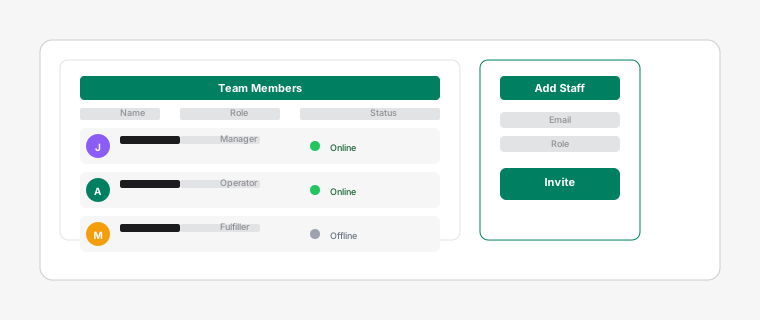
Staff management interface showing a list of team members with avatars and status indicators
Teamwork makes the dream work. Adding staff members to your Dispatch Board lets you share the workload, track who is doing what, and fulfill orders faster as a team.
Before you start
Free plan: up to 3 staff. Starter: 5. Pro: 15. Enterprise: unlimited. Upgrade anytime from Billing.
Steps
1
Open the app and tap More in the top navigation (or the bottom tab on mobile), then choose Add Staff.
2
Enter the team member's name and email (for identification), then tap Add Staff.
3
The new member appears in the team workload panel on the board and can be assigned to tasks immediately.
4
Start assigning tasks by dragging task cards onto staff avatars in the left sidebar.
The card updates instantly with the assignee's initials and color.