How Shopify Orders Flow Through the Kanban Board
6 min read
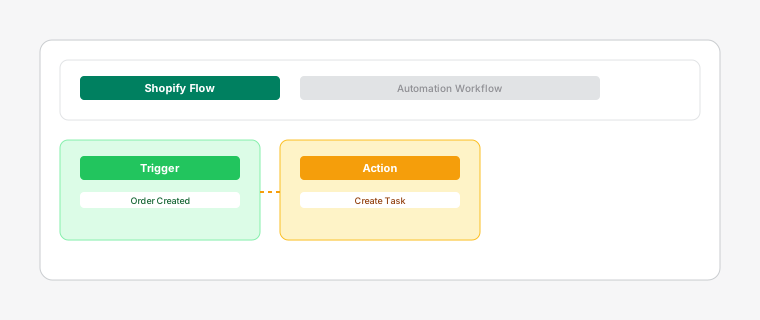
The Dispatch: Kanban Order Board is a fulfillment dispatch system that stays in sync with Shopify in both directions. Orders created in Shopify appear as tasks on the board, and actions you take on the board can update fulfillment status back in Shopify.
Orders from Shopify arrive on your board through webhooks — automated HTTP callbacks that Shopify sends when events happen. When you install the app, it registers webhooks for orders/create, orders/updated, orders/cancelled, and fulfillment_orders/* topics. When a customer places an order on your store, Shopify sends an orders/create webhook to the app. The app creates a dispatch task in the OPEN column with the order details, customer info, line items, and shipping address. Tasks created this way have a fulfillmentOrderId that links them to the Shopify fulfillment order.
As your team processes orders on the kanban board, each status change can trigger a corresponding action in Shopify. Moving a task to IN_PROGRESS (by dragging or clicking Start) calls the fulfillmentOrderRelease API to ensure the Shopify fulfillment order is active. Moving a task to ON_HOLD (by clicking Hold or dragging to the On Hold column) calls the fulfillmentOrderHold API to pause the fulfillment order in Shopify. Moving a task to COMPLETED (Ready to Ship) calls the fulfillmentOrderRelease API to release any hold, indicating packing is complete and ready for shipping.
The Fulfill button appears on task cards that meet three conditions: the task status is COMPLETED (Ready to Ship), the task has a fulfillmentOrderId (meaning it was synced from a Shopify order), and the task hasn't already been fulfilled (no shopifyFulfillmentId). When you click Fulfill, the app calls fulfillmentCreateV2 to create a shipment in Shopify, and the task status changes to FULFILLED. After this succeeds, the Fulfill button disappears because the order is already marked as fulfilled.
Manual tasks (created via the Add Task button) behave differently. They do not have a fulfillmentOrderId because they aren't linked to any Shopify order. This means dragging them to COMPLETED won't create a Shopify fulfillment, and the Fulfill button won't appear. Manual tasks are useful for tracking non-Shopify orders (phone, in-store) or internal operations alongside your Shopify order workflow.